
Build a repeatable baseline
There is no single WARDOGS preset that is best for every PC. Resolution, GPU, CPU, VRAM, display refresh rate, driver and the number of players in a scene all change the result. Compare your hardware with the official system requirements, update the game and driver, then record a baseline before changing several options at once.
Use the same busy multiplayer area, camera path and test duration. Write down average frame rate only if available, but pay equal attention to frame-time spikes, input response and whether distant players remain readable. A quiet menu or empty headquarters is not a useful performance test for a 100-player match.
Display and frame delivery
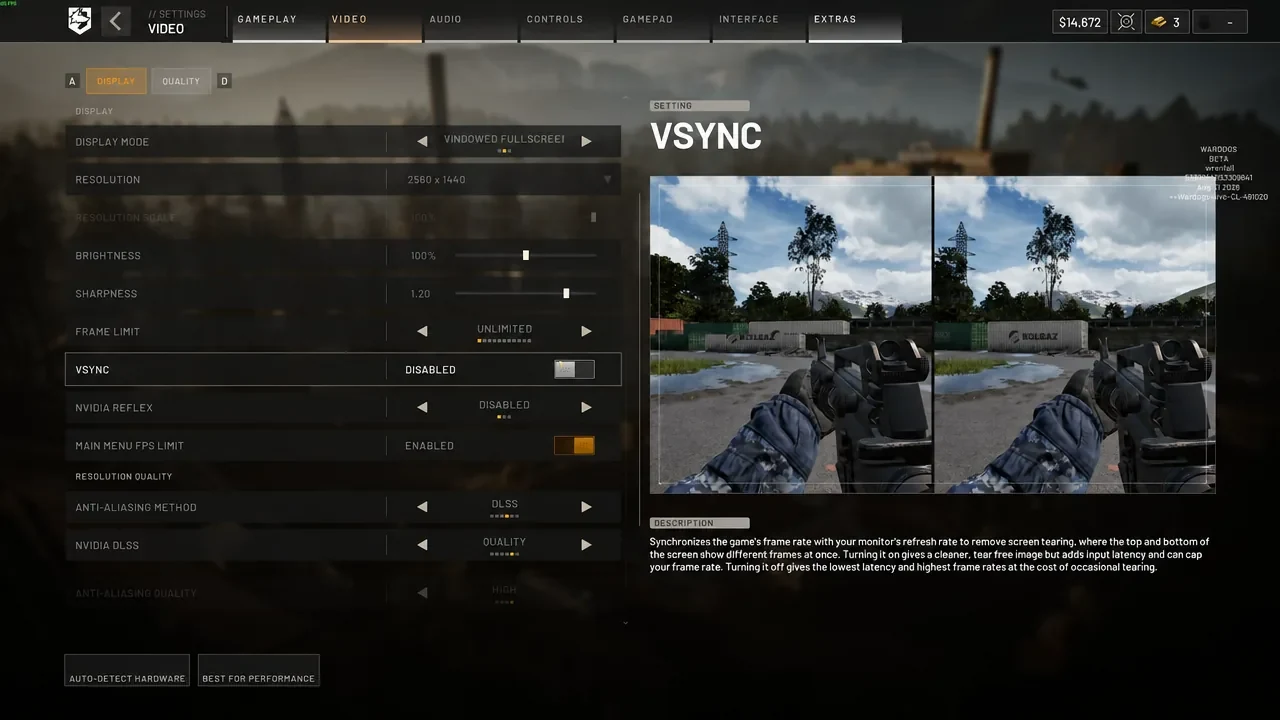
Start with the display’s native resolution and the full-screen mode that behaves correctly on your system. Set a practical frame limit for the monitor and PC, then compare the result with and without VSync. Turning VSync off is a useful initial latency test; keep it off only if tearing and frame delivery remain acceptable. Display-level adaptive sync can change the best choice.
If the client offers NVIDIA Reflex on supported hardware, compare it in the same scene instead of assuming the label guarantees a smoother result. Avoid combining a new frame limit, sync mode and quality preset in one test because you will not know which change caused the outcome.
Upscaling and frame generation
Select the upscaler supported by the installed GPU, such as DLSS, FSR or XeSS when the current client offers it. Begin with a quality-oriented mode at native output resolution. Move toward Balanced or Performance only when the measured gain is worth the softer image, shimmer or reduced distant clarity on your display.
Test frame generation after the base frame rate is stable. It can improve displayed smoothness on supported hardware, but it does not replace a responsive base frame rate and can add artifacts or latency. Do not quote a universal percentage gain: current settings guides report different results because their hardware and scenes differ.
Quality settings to tune first
Change one expensive group, replay the same scene and keep a short record. A practical order is:
- shadows and effects;
- reflections and post-processing;
- view distance or foliage when the option is available;
- anti-aliasing or upscaling quality;
- textures only when VRAM use or visible streaming suggests pressure.
Textures often use memory more than shader time, so dropping them first may make the image worse without fixing a CPU limit. Preset names also hide several individual values. Use them to establish a baseline, then compare the settings that affect your actual bottleneck.
Visibility audio and controls
Performance and clarity must be tested together. Keep brightness high enough to read interiors without washing out the exterior, avoid excessive sharpening and check whether effects obscure players in motion. Set field of view for awareness and comfort, then retest performance because a wider view can render more of the scene.
Use headphones or a clear speaker mix, reduce music only as needed and verify that voice chat still has enough level for squad calls. Mouse sensitivity is personal: record your current value and change it in small steps rather than copying a creator’s number without matching DPI and field of view.
Diagnose stutter before changing more
Stutter can come from shader compilation, a background task, storage, VRAM pressure, a driver issue, thermal throttling or a busy server scene. Record the exact hardware, resolution, display mode, preset, upscaler, frame-generation state, driver version, game build and scene where the problem occurs. That evidence is more useful than saying the game feels slow.
Finish pending Steam updates, verify files if the client may be damaged and use the troubleshooting guide for crashes or connection symptoms. Avoid downloadable “FPS packs,” replacement configuration files and graphics injectors: they can become outdated, break support evidence or conflict with anti-cheat. The menu capture and workflow on this page were reviewed on September 23, 2026; recheck option names after a major patch.
Read every value with its version.
Official changes use first-party announcements. Item fields without a current official table remain labeled as dated gameplay records until they can be checked in the public client.